Automated Invoice Template in Excel: What “Automated” Should Mean
Invoice template excel: check invoice numbers, line totals, tax inputs, and payment status before reuse. Use this four-part test to spot fragile formulas.
By Small Business Bundle by Cosmo Suite · Editorial policy
Published · 7 min read
An invoice template in Excel is only as reliable as the parts you test. Check whether invoice numbers stay distinct, line amounts recalculate, totals include the right rows, and payment status matches what actually happened. A neat layout does not prove that its formulas work.
The word automated can mean anything from multiplying quantity by rate to creating an invoice number. Treat those as separate jobs. Make a copy, change one value, add a line, and confirm the result before you send a real invoice.
This guide gives you a four-part check, a small fictional example, and a way to decide whether Excel fits your invoicing routine.
In Short: test numbering, line math, tax inputs, and payment status independently. A spreadsheet can calculate and record values; it does not collect payment or confirm that money arrived.
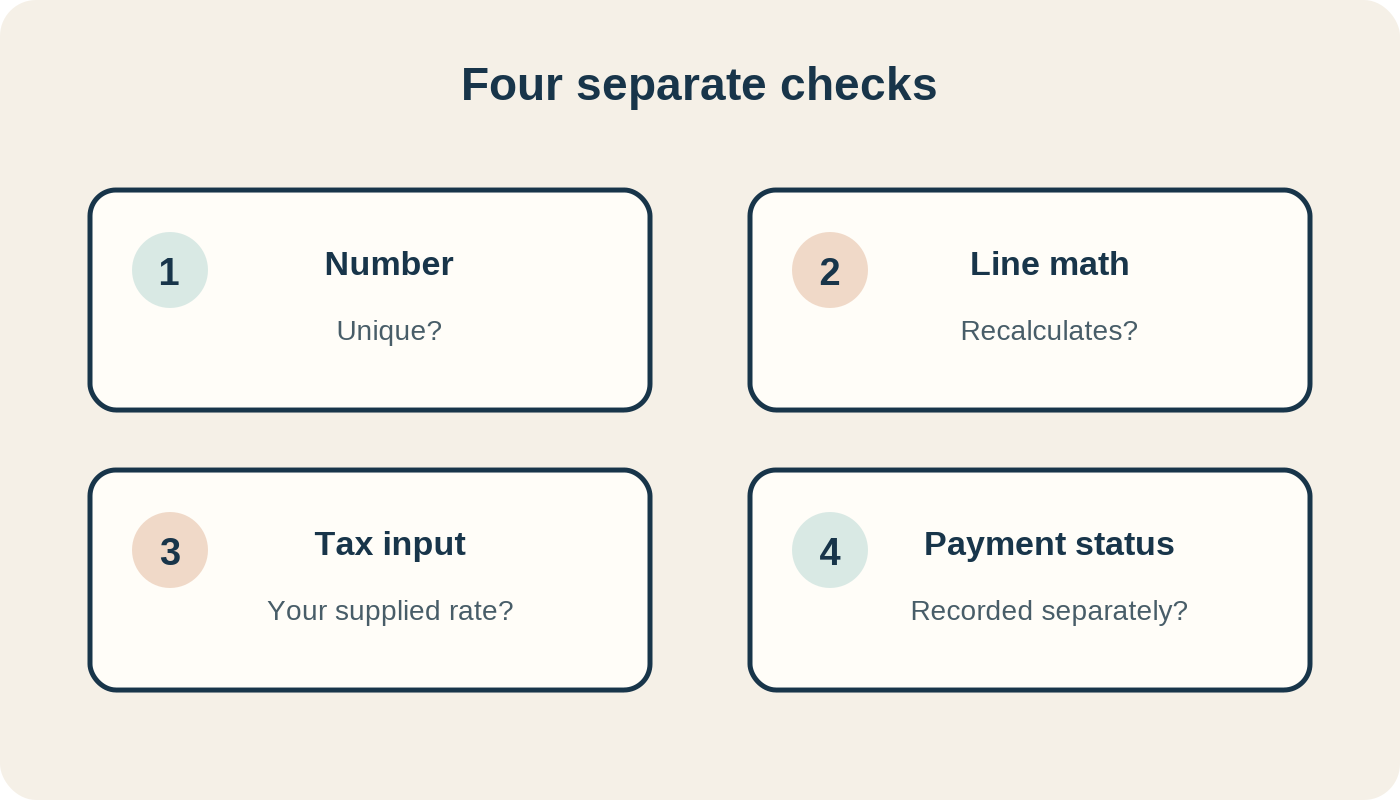
Four Invoice Automations at a Glance
An invoice workbook earns trust when each calculation does what its label promises. Use this table to test the file in a duplicate copy before adding your business details.
| Check | What to enter | What should happen | Warning sign |
|---|---|---|---|
| Invoice number | Create the next invoice from a copy | The issued number stays distinct from earlier invoices | A duplicate reuses a number without warning |
| Line amount and total | Enter quantity and unit rate | The line amount and subtotal recalculate | A changed quantity leaves the old amount |
| Tax input | Use a supplied test rate only | The formula follows the workbook’s stated taxable base | Tax appears on an excluded line or uses a hidden rate |
| Payment status | Change the record after checking payment elsewhere | The status reflects the verified event | “Paid” changes without an actual payment check |
These are four different behaviors. A template may calculate line amounts but leave numbering, tax choices, or payment records to you. Write down what the workbook does before deciding whether the word automated fits your process.
Start With the Invoice Number
An invoice number helps you find and distinguish an issued invoice. Test how the workbook handles it before relying on a copied file. Do not assume that a number changes automatically just because the invoice layout looks reusable.
Try this in a copy:
- Record the current invoice number in a separate test note.
- Duplicate the workbook or use its “new invoice” process.
- Check whether the new document has a distinct number.
- Close and reopen the file. Confirm the number stayed the same.
If the workbook leaves numbering to you, a simple sequence you maintain may be enough. The key is consistency: save the issued document with its number and keep a record of which numbers you used. Avoid changing an old issued invoice in place. Make a new copy for a correction and follow the recordkeeping process that applies to your business.
This article does not set one numbering pattern that every small business must use. Your accounting process, customer records, and local requirements may affect what you need. If you are unsure, ask a qualified adviser about the recordkeeping rules that apply to you.
Check Line Math Before the Grand Total
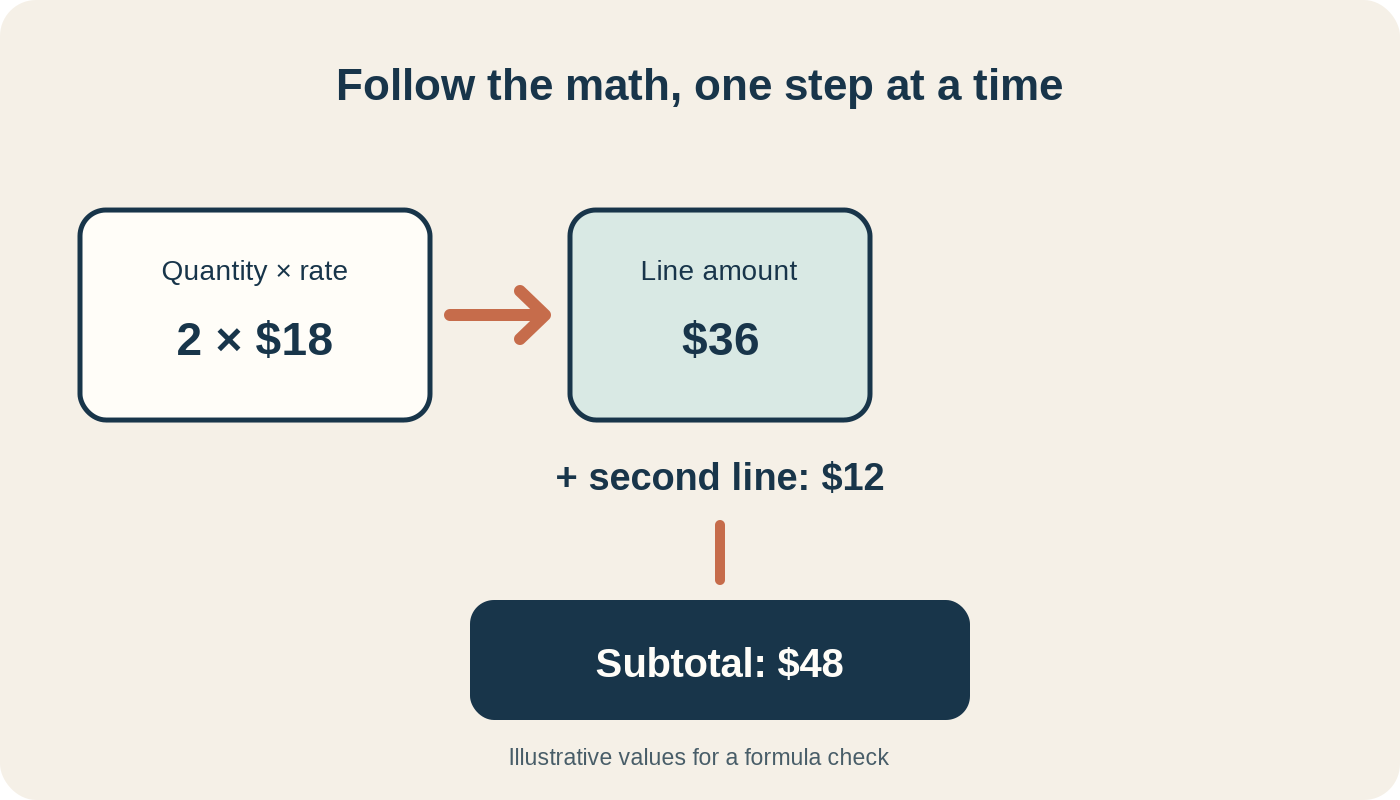
Start with the smallest calculation. If a line amount is wrong, a correct-looking grand total can hide it. Enter a quantity and rate you can multiply by hand, then compare the sheet with your calculation.
For example, use two units at $18 each. The line amount should be $36. Add a second test line at $12, and the subtotal should be $48 before any other adjustment. These are illustrative values, not a customer invoice or a test of a particular product workbook.
Microsoft explains that AutoSum can add a range of values in Excel. That is useful for checking a total, but it does not prove the selected range includes every invoice line. Microsoft’s AutoSum guidance shows how to sum values; you still need to confirm the range fits your invoice.
Also test a row change. Some invoice sheets use formulas that point to a fixed range. Add a line within the table, enter a quantity and rate, then check both the new line and subtotal. Vertex42 notes that users may need to check subtotal and taxable formulas after inserting rows in its Excel invoice template guidance.
If you offer a discount, shipping, or another charge, check where it enters the math. The correct order can depend on your pricing and tax setup. The workbook should make its treatment visible enough for you to verify rather than hide it in an unexplained total.
Treat Tax as an Input, Not a Promise
A formula can multiply a taxable amount by a rate you enter. That arithmetic does not determine whether a sale is taxable, which rate applies, or which items belong in the taxable base.
For a formula check, use a temporary rate supplied by your own test plan and compare the result with a calculator. Then remove the test values. Do not copy a rate from another seller or an old workbook and assume it applies to your sale.
Your location, customer, product, and transaction may affect tax treatment. Check current official guidance or speak with a tax professional about your situation. Keep the template’s tax formula and your decision about tax rules as separate steps.
In your notes, record what the sheet calculates and what you must decide. For example: “The sheet multiplies the taxable subtotal by the rate I enter. I check the rate and taxable items before sending.” That is clearer than relying on a field labeled “Tax” without knowing how it works.
Keep Payment Status Separate From Payment Processing
An invoice spreadsheet can record a status you enter. Unless it is connected to a payment service and you have verified that connection, changing a cell does not collect money or confirm a deposit.
Use separate steps: send the invoice, check the payment through your processor or bank, and then update the invoice record. A useful status might be “sent,” “due,” or “marked paid,” as long as you understand what each label means in your own process.
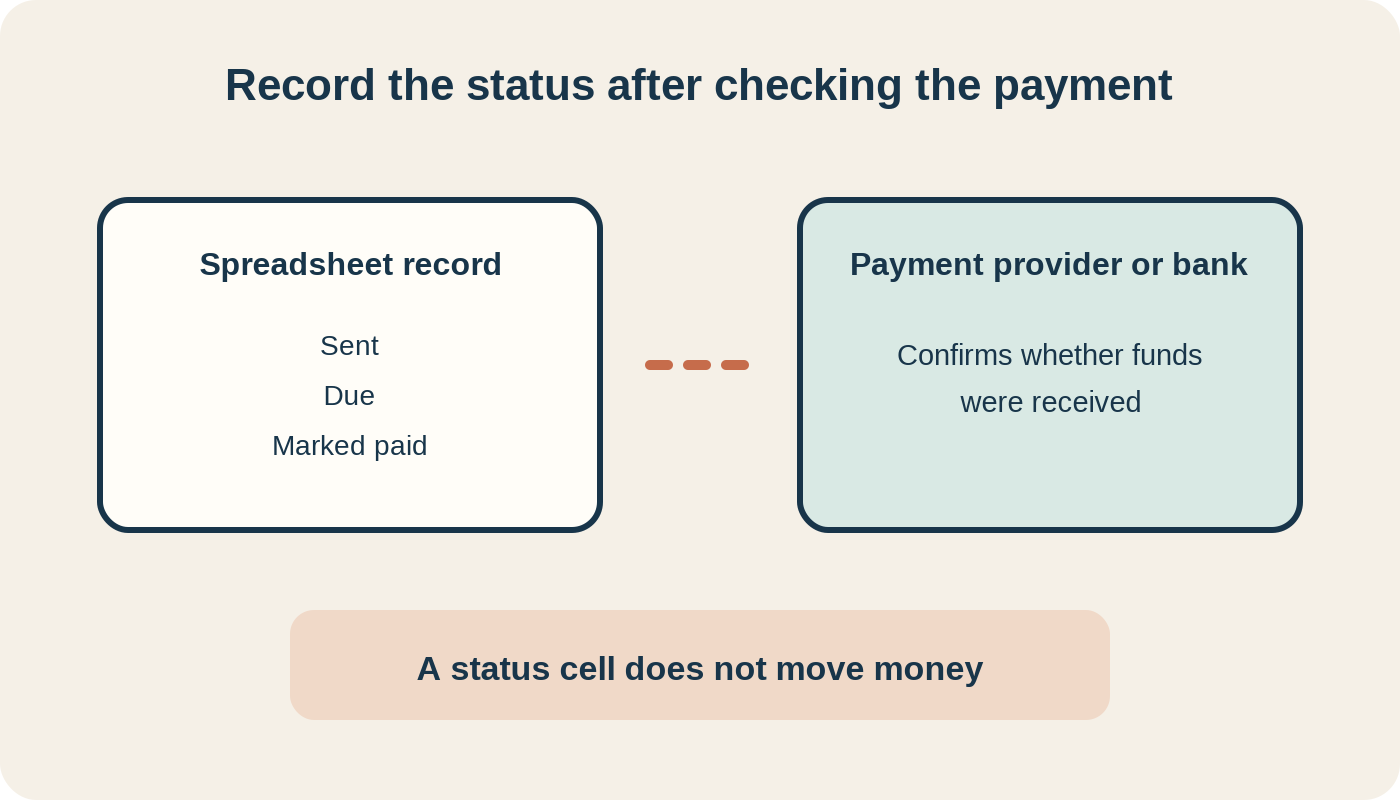
That gap is easy to miss when you copy an invoice for a new customer. A copied “paid” label can survive even when the new invoice is unpaid. After duplicating a file, check the status field along with the number, name, dates, and amounts.
Run a Five-Minute Copy Test
Test on a copy with made-up figures before a customer ever sees it. Use values that are easy to verify by hand.
- Copy the blank file. Keep the original untouched as a reset point.
- Enter two lines. Use simple quantities and rates, such as 2 × $18 and 1 × $12.
- Change one input. Increase the first quantity and check whether its line amount and subtotal update.
- Add a row. Confirm the added line appears in the subtotal and any relevant tax calculation.
- Check the number and status. Duplicate the invoice, then confirm its number is distinct and its payment label is appropriate.
- Save, close, and reopen. Look for values that revert or formulas that display errors.
- Preview the PDF or printout. Check that the amount, customer details, and due information remain readable.
Keep a short note beside the template: what updates automatically, what you enter, and what you verify outside the spreadsheet. If a formula fails, restore the clean copy and fix the formula before using the template with a real customer.
When Excel Fits, and When It Does Not
Excel can suit a straightforward process where you prepare invoices yourself, save a copy of each one, and check payments separately. Microsoft provides Excel invoice templates that you can select and edit. A focused free template may be enough if you only need an invoice page.
Vertex42 also offers invoice templates for Excel and Google Sheets, with different layouts for different needs. Compare the fields and formulas against your own process. A template with more features can still be the wrong fit if it makes routine checks harder.
Consider an invoicing service when you need online payment collection, recurring billing, automatic reminders, customer access, or several people working from the same records. A spreadsheet does not become a payment system because a status field says “paid.” Check current features, fees, and export options before choosing a service.
For related spreadsheet decisions, see our guides to a small business spreadsheet and an invoice template for Google Sheets. Both come back to the same practical question: which work do you want the file to handle, and which checks will remain yours?
Why Trust This Article
This article uses Microsoft Support for Excel template and totaling guidance, plus Vertex42’s published invoice-template instructions. The sample amounts are fictional and shown only to make the arithmetic easy to verify. No tax rule or customer outcome is claimed.
How Small Business Bundle Handles This
Small Business Bundle’s published contents list includes an Automated Invoice generator among its spreadsheets. This article does not claim which numbering, tax, total, or payment-status behaviors that tab performs.
If you are comparing it with a standalone file, use the same four checks above on a copy before relying on it. Small Business Bundle is a one-time spreadsheet bundle for Excel 365 and Google Sheets; see the bundle details and confirm that the listed contents fit the paperwork you want to keep together. You can also review Small Business Bundle’s product contents before deciding.
Frequently asked questions
What should an automated invoice template in Excel do?
At minimum, test whether it keeps invoice numbers distinct, recalculates line amounts and totals, applies a tax input only where intended, and records payment status clearly. Those are separate behaviors. A template may do some automatically and leave others for you to enter, so check each in a copy before using it for real invoices.
How do I number invoices in Excel?
Choose a clear numbering pattern and make sure each issued invoice keeps a distinct number. A spreadsheet may hold a number you enter, or it may help generate one. Test what happens when you duplicate the file and when you create the next invoice. Keep a separate record of issued numbers if your process needs one.
Can an Excel invoice template calculate sales tax?
It can calculate from a rate you supply if its formulas support that setup. Whether tax applies, which rate to use, and what belongs in the taxable base depend on your situation and local rules. Verify those separately with an appropriate authority or tax professional. This article does not give tax advice.
Does marking an invoice paid collect the payment?
No. A status cell records what you enter. It does not charge a card, transfer funds, or confirm a bank deposit. Check the payment through your processor or account, then update the spreadsheet record to match.
How can I tell if invoice formulas still work after adding a row?
Make a copy, add a line inside the item table, enter a quantity and rate, and check the line amount and subtotal. If the new row is excluded or an existing amount changes unexpectedly, inspect the formula range before using that file. Vertex42 also advises checking totals after inserting rows in its invoice guidance.
When should I use invoicing software instead of Excel?
Use a spreadsheet when a simple, manual record fits your process and you can verify each invoice. Consider dedicated software when you need online payment collection, reminders, client access, recurring billing, or a shared audit trail. Compare those needs with the tool’s current features and price before switching.