CRM Spreadsheet: A Customer Tracker for a Small Business
CRM spreadsheet: track customer details, orders, last contact, and a useful next step in one place. Learn the fields, workflow, and signs you need an app.
By Small Business Bundle by Cosmo Suite · Editorial policy
Published · 8 min read
A CRM spreadsheet is a customer list that helps you remember who bought from you, what they ordered, and what you agreed to do next. For a one-person business with a manageable number of customers, a tidy sheet can be enough to keep those details together.
The key is to separate people from purchases. Keep one row per customer, then connect each order to that customer with a stable ID. This gives you a simple way to spot a returning buyer without turning one customer into three nearly identical rows. If customer notes now sit across messages and order records, Small Business Bundle includes a workbook for customer and order records.
In Short: track a customer ID, contact route, first and last order, order count, last contact, and next action. Keep detailed order history in a separate order log. Switch to a CRM app when you need automation, shared access, or a searchable record of conversations.
CRM Spreadsheet Fields: A Small Customer Record
A useful CRM spreadsheet starts with the fields that help you recognize a customer and choose a sensible next step. Here is a fictional example for a maker who takes orders at markets and online. The customer IDs connect these rows to an order log, so one person can have several purchases without appearing as several customers.
| Customer ID | Customer | Contact route | First order | Last order | Orders | Last contact | Next action |
|---|---|---|---|---|---|---|---|
| C-014 | Maya R. | 2026-05-08 | 2026-10-03 | 2 | 2026-10-03 | Send pickup details by 2026-10-05 | |
| C-027 | Devon K. | Market stall | 2026-09-14 | 2026-09-14 | 1 | 2026-09-14 | None planned |
The names, dates, and order counts above are invented for illustration. They show how the customer row can answer two practical questions: have we served this person before, and is there a follow-up we already promised?
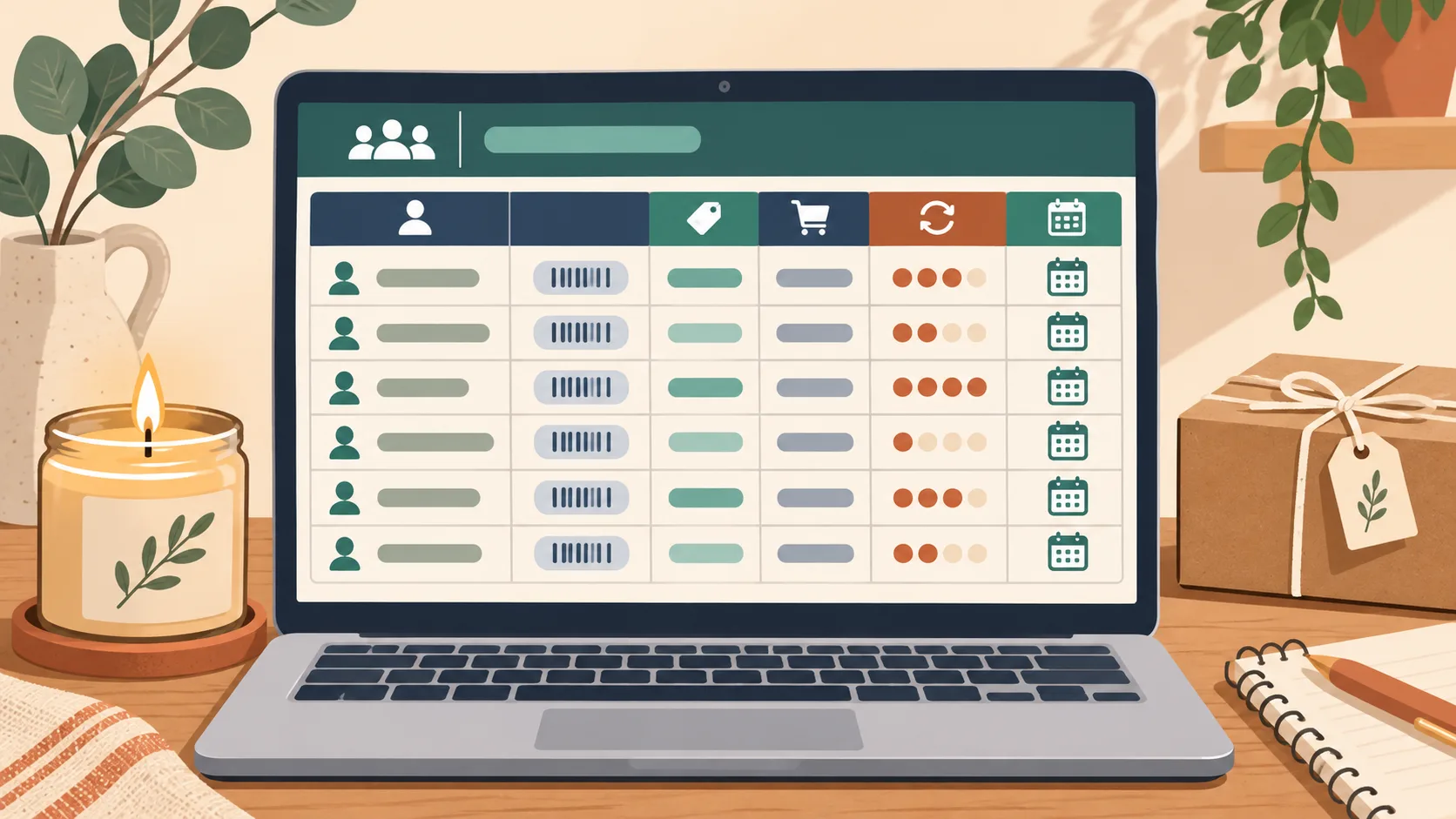
Do not put every conversation detail into one cell. Use a short note for context, such as "asked about the blue glaze," and keep the full conversation in the email or sales channel where it happened. Use the spreadsheet as a reminder and index.
Customer List vs Order Log: Keep One Row Per Thing
A customer tracker and an order tracker solve related but different problems. The customer sheet describes a person; the order log describes a purchase. One person can have several orders, so combining both in one table creates repeated names and makes totals harder to trust.
| Record | One row represents | Useful fields |
|---|---|---|
| Customer | One person or business | Customer ID, contact route, first and last order, next action |
| Order | One accepted purchase | Order ID, customer ID, item, date, amount, fulfillment status |
| Contact | One meaningful follow-up, if you need a history | Date, customer ID, channel, reason, agreed next step |
For example, Maya orders a candle in May and a gift set in October. Keep one customer row for Maya and two order rows, both linked to C-014. If you instead add a fresh customer row for each purchase, a quick filter may treat Maya as two customers.
Keep the customer ID stable, and put the order ID on every order record. A simple customer list can still work without formulas. The IDs give you a reliable way to search and compare rows as the list grows.

Set Up the Sheet Without Making It Fragile
Build the customer list so each column has one meaning and each row follows the same pattern. A few careful choices at the start reduce cleanup later.
- Choose a stable customer ID. Use a short label such as C-014. Do not use a phone number or email as the ID because those can change.
- Use one customer per row. Before adding a person, search the name or contact route to check whether a row already exists.
- Keep the header row plain. Use labels such as
Customer ID,Last order, andNext action date. Avoid merged cells and multiple header lines. - Use consistent choices. A dropdown for contact route or customer status can keep entries like “Instagram,” “IG,” and “Insta” from becoming separate values. Google Sheets supports in-cell dropdowns, and Excel supports dropdowns through data validation.
- Sort and filter the full table. Filter by next action date or last order when you need a short working list. Google explains how to sort and filter rows in Sheets; Microsoft documents filtering a range or table in Excel. Both let you narrow the visible records while keeping the full list.
For consistent entries, Google’s in-cell dropdown instructions describe restricting a cell to choices. Use a short list for fields such as contact route or stage, then update the options when your process changes. 6. Keep private details out. Record only what you need for the work. Limit file access, and do not use a public share link for customer information.
If you use a formula for order count, make sure every order has a customer ID and every customer ID is spelled the same way. Test the formula against a few rows before relying on it. If the formula is not easy to explain, the order log may be easier to review by filtering the customer ID.

What Customer Information Should You Leave Out?
A customer tracker should hold details that help you fulfill an order or keep a promise. A name, preferred contact route, purchase history, and dated next action may be useful. Payment card numbers, account passwords, or unrelated personal details do not belong in a basic customer sheet.
The Federal Trade Commission advises businesses to collect only information they need, protect what they keep, and dispose of it when there is no longer a business need. Its guide to protecting personal information includes advice for small businesses. Follow the privacy requirements that apply where you operate, since one guide cannot cover every business or jurisdiction.
Before you add a column, ask who will use it and what task it supports. If you cannot name a task, leave the field out. Review the file's sharing settings when staff or contractors change, and remove access when someone no longer needs the records. A stable customer ID should be a label such as C-014, not a sensitive identifier.
A Repeat-Customer View That Stays Honest
A repeat-customer view is a way to find customers with more than one completed order. It does not tell you why they returned or whether they will buy again. It only summarizes the records you entered. Salesforce defines CRM as customer relationship management and describes its own CRM as a way to access customer data; that broader software category can include features a spreadsheet does not provide. See Salesforce Help: CRM Basics.
Suppose the fictional order log contains C-014 on two completed orders and C-027 on one. A count by customer ID would show two purchases beside Maya and one beside Devon. That is a record count, not a prediction or a measure of loyalty. If Maya also has an open order, decide whether your count includes it before comparing customers. For a simple manual check, filter the order log to C-014 and count only rows with the status you defined as complete. Write the definition near the count so you remember what the number means a month later. No formula can fix an inconsistent rule.
Use a definition that fits your workflow. You might count accepted orders, paid orders, or completed orders. State which one you chose, then apply it the same way each time. If you sell through a marketplace and also take direct orders, make sure the same purchase is not entered in both places.
A small weekly check can catch messy data:
- Search for blank customer IDs in the order log.
- Check for duplicate customer rows with slightly different spellings.
- Compare a few order counts with the source order records.
- Update a next action only when you have a real promise or useful reason to contact someone.
Keep the summary descriptive. A count of two orders means two records meet your definition. It does not prove a customer is satisfied, profitable, or likely to return. If you want customer and order tabs to maintain by hand, Small Business Bundle includes an Order & Customer Tracker spreadsheet.
Where a Spreadsheet Stops Being Enough
A spreadsheet can suit a small business when one person maintains the list and updates happen by hand. CRM software may fit better when leads arrive from forms, messages need to be logged automatically, several people share follow-up work, or you need access rules by role.
| A spreadsheet may fit when… | Compare CRM software when… |
|---|---|
| You add customers manually | New leads need to flow in from forms or other tools |
| One person updates the records | A team needs assigned tasks and different access levels |
| A next-action date is enough | You need automatic reminders or email history |
| You can find a record with filters | You need search across notes, messages, and deals |
CRM software vendors describe CRM as a way to manage customer information and relationships. The exact features vary by product and plan, so check each vendor's current documentation and pricing before choosing. A spreadsheet does not automatically send messages, process payments, schedule appointments, or sync a sales channel.
Think about the work that is being repeated. If you copy customer details from a form into a sheet, then copy them again into email reminders, automation may save time. If you only look up a name a few times a week, the extra setup and monthly fee may not help. Small Business Bundle's HoneyBook alternatives guide explains where a connected client platform differs from a spreadsheet.
Why Trust This Article
We checked the spreadsheet instructions against Google Docs Editors Help, Salesforce Help, and Microsoft Support on November 12, 2026. The sample names and purchase records are fictional. The customer and order field suggestions are a practical example, not a prescribed CRM standard. Small Business Bundle is our product; its included contents are listed on the product page.
How Small Business Bundle Handles Customer Records
Small Business Bundle includes an Order & Customer Tracker spreadsheet with nine tabs, alongside spreadsheets for bookkeeping, bills, and pricing. It is a workbook for records you maintain, not a CRM application. It does not automatically capture leads, send follow-up messages, or process customer payments.
If you want a ready-made workbook for customer and order records, see Small Business Bundle. Its customer tabs can sit beside the order records, so you can keep related information in one bundle. Check the included tab structure against your workflow before you move your current records.
For a simple way to count repeat orders, read how to find repeat customers in a small business. The order tracker spreadsheet guide covers accepted orders and fulfillment.
Frequently asked questions
What should a CRM spreadsheet include?
Start with a customer ID, name, contact method, first and last order dates, what they bought, and a next action with a date. Add only fields you will use, and avoid storing sensitive details you do not need.
Can I use Google Sheets as a CRM?
Yes, for a small, mostly manual customer list. Use one row per customer, consistent dropdown choices, and filters. A spreadsheet will not automatically sync conversations, send reminders, or manage permissions like a dedicated CRM may.
How do I track repeat customers in a spreadsheet?
Give each customer one stable ID, record each order in an order log, and connect the order to that ID. Then count distinct order IDs per customer or review the linked order history. Do not create a new customer row for every purchase.
What is the difference between a CRM spreadsheet and an order tracker?
A customer tracker holds one row per person and helps you remember the relationship. An order tracker holds one row per accepted order and follows what was bought, when it is due, and its status. One customer can have many orders.
When should a small business switch from a spreadsheet to CRM software?
Consider an app when you need automatic lead capture, reminders, email history, team permissions, or several users updating records at once. Compare the monthly cost with the time and errors the manual process creates.
How do I keep customer information safe in a spreadsheet?
Limit access to people who need it, collect only useful details, and follow the privacy rules that apply to your business. A shared link can expose customer records, so check its access setting before sending it.
Sources
Keep reading
Orders and Customers
Order Tracker Spreadsheet: From New Order to Shipped
Order tracker spreadsheet: use clear status steps, one row per order, and a quick end-of-day check to keep customer requests from slipping through.
· 7 min read
Orders and Customers
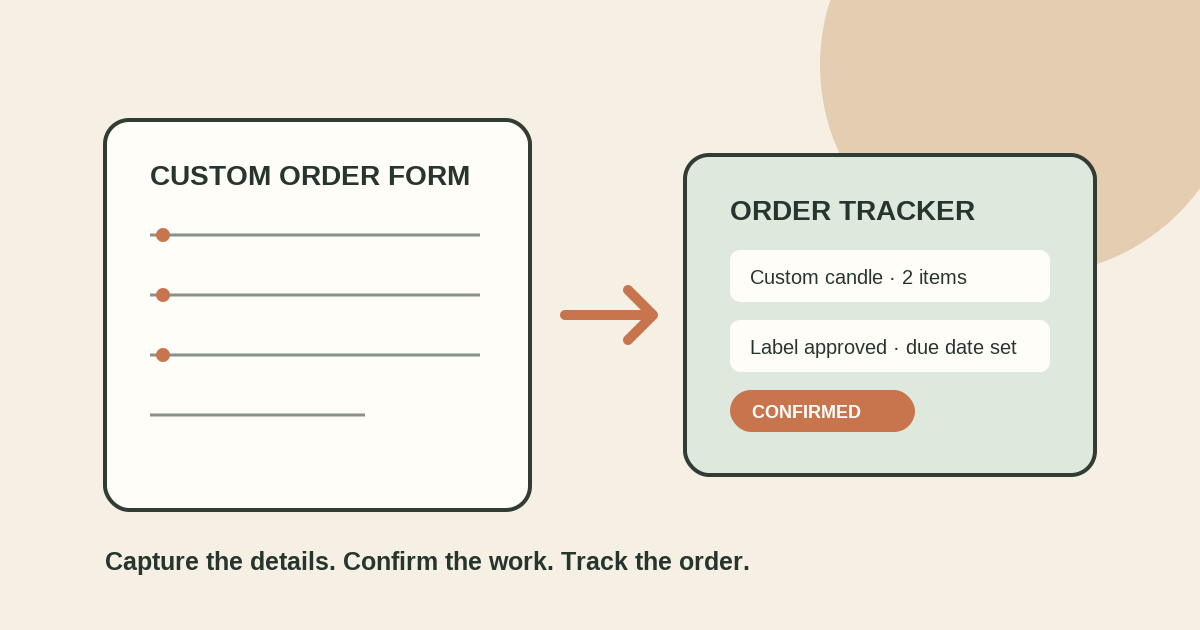
Order Form Template for Custom Orders: 10 Questions to Ask Up Front
Order form template: capture the choices that affect price, materials, timing, and delivery, then move accepted details into your order tracker.
· 8 min read
