Order Tracker Spreadsheet: From New Order to Shipped
Order tracker spreadsheet: use clear status steps, one row per order, and a quick end-of-day check to keep customer requests from slipping through.
By Small Business Bundle by Cosmo Suite · Editorial policy
Published · 7 min read
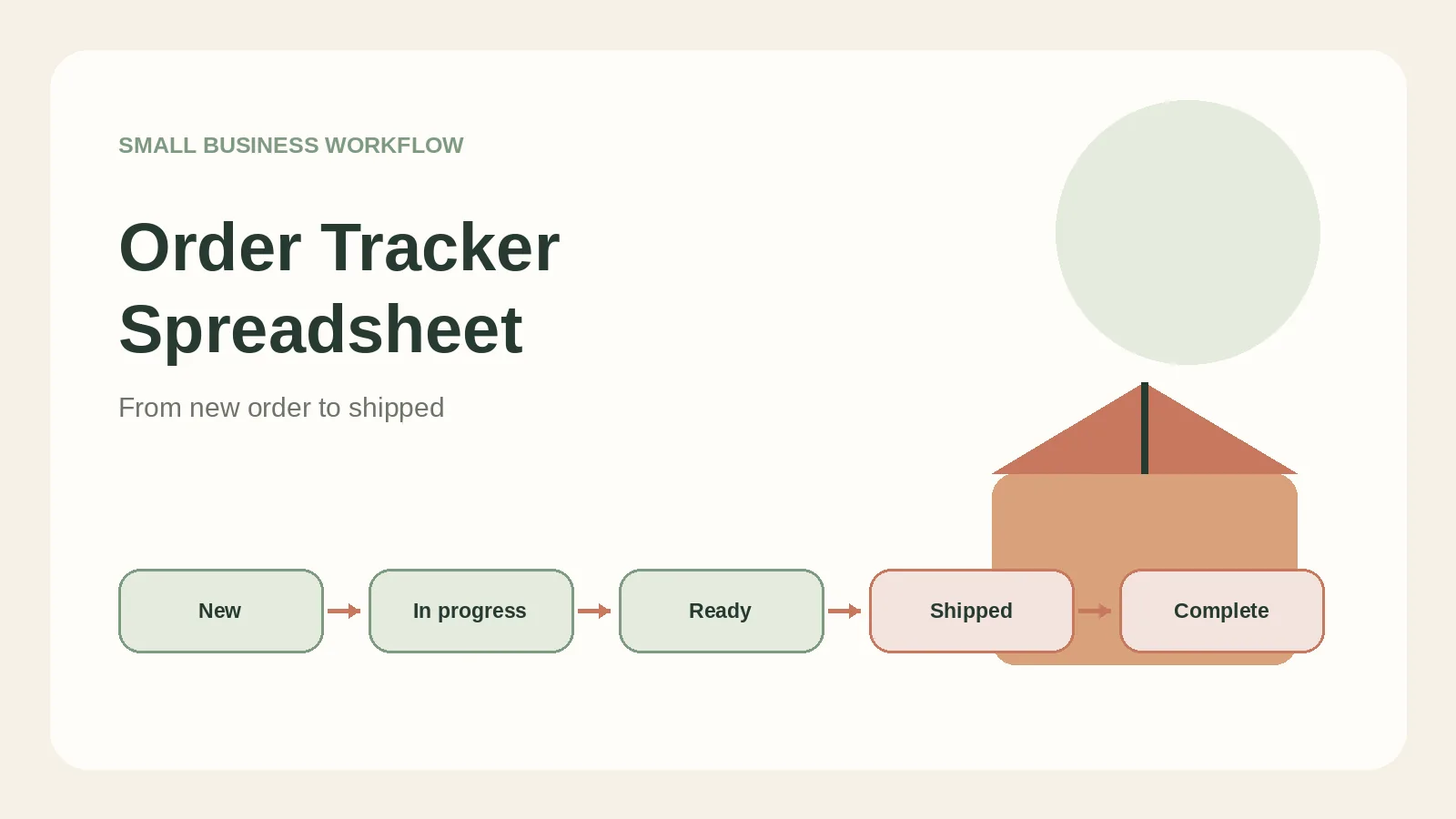
An order tracker spreadsheet is a live list with one row per accepted order, one current status, and one next action. It shows what needs making, packing, sending, or a customer reply.
For a maker, a useful starting flow is New → In progress → Ready → Shipped → Complete. Change the labels to fit the work. A custom cake, a made-to-order candle, and a digital download do not move through the same steps. Keep payment in its own field because money and fulfillment can change at different times.
This guide shows the columns to use, how to move an order through the sheet, and a short daily check that catches stale rows. If you also need a connected view of customers and orders, Small Business Bundle includes an Order & Customer Tracker spreadsheet.
In Short: make one row per accepted order. Record who ordered, what they ordered, when it is due, its current status, and what you need to do next.
What Should an Order Tracker Spreadsheet Include?
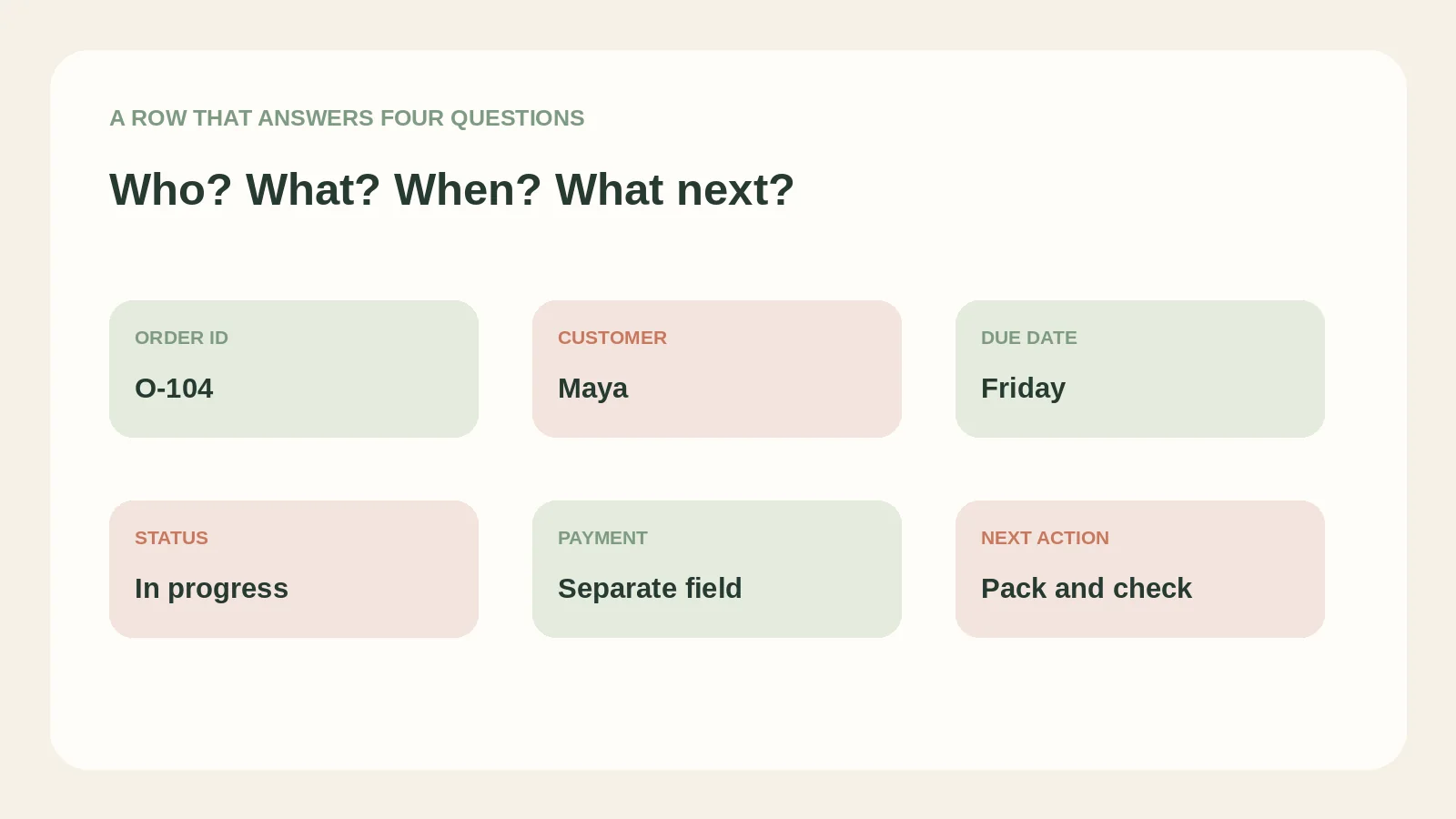
Start with a small set of fields that help you answer four questions: who is waiting, what did they order, when is it due, and what should happen next?
| Column | What to enter | Check before moving on |
|---|---|---|
| Order ID | A short unique label, such as O-104 | Can you find the original message or receipt? |
| Date received | The day you accepted the order | Is this the accepted order date, not an inquiry? |
| Customer | Name and the contact route you use | Is it spelled the same way each time? |
| Item and quantity | Product, variation, and count | Are custom details written down? |
| Due date | The date you agreed to | Did you confirm it with the customer? |
| Status | One choice from your short list | Does it describe the work now? |
| Payment | Unpaid, part paid, paid, or a note | Did you check the payment record? |
| Next action | The next task and, if useful, its date | Is a specific person responsible? |
A spreadsheet works best when each field has one job. Do not combine “Shipped, paid, sent thank-you” into a single status cell. You cannot filter that phrase cleanly, and it mixes fulfillment with payment and follow-up.
These fields are a starting setup. Small Business Bundle includes an Order & Customer Tracker as one of its four spreadsheets. Its workbook has nine tracker tabs. The fields in this article are a suggested way to organize a sheet, not a claim that every field is already configured in that workbook.
How Do You Move an Order From New to Shipped?
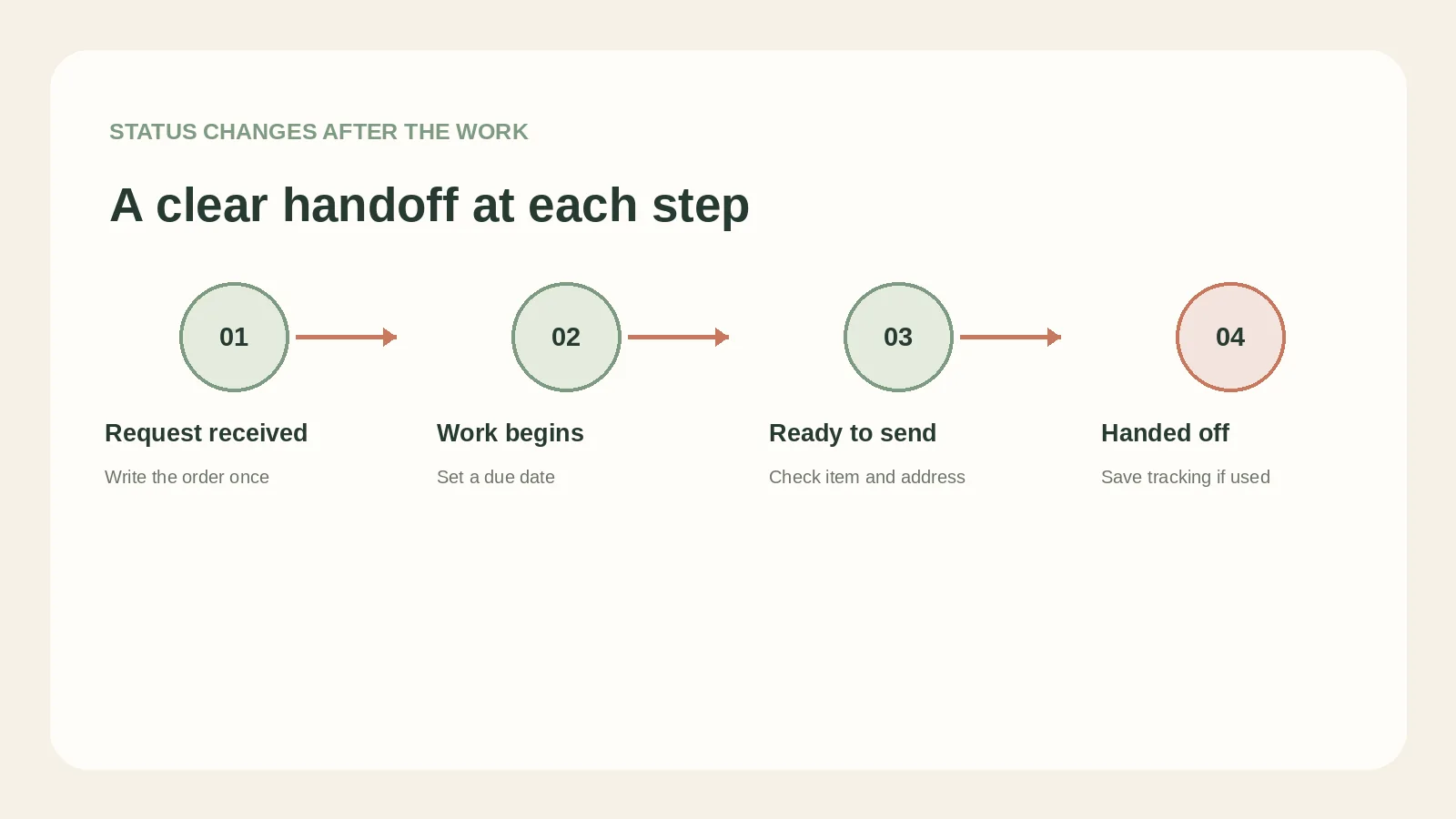
Move the status only after the related action is complete. Then write the next step so the row tells you what to do without reopening every message.
| Status | It means | Record or check |
|---|---|---|
| New | You accepted the order and recorded it | Item, variation, customer, due date |
| In progress | You started the work | Any customer-approved change |
| Ready | The item is finished and checked | Quantity, packaging, address or pickup plan |
| Shipped | You handed it to the carrier or delivery service | Date sent and tracking reference, if available |
| Complete | The agreed handoff is done | Any promised follow-up |
This sequence is for a handmade item that needs preparation and shipping. If the order is a local pickup, rename “Shipped” to “Ready for pickup” and then “Picked up.” For a service, use steps such as “Booked,” “In progress,” and “Delivered.” Pick labels that describe observable events.
Shopify’s order status guide separates work in progress from fulfillment. It also uses “partially fulfilled” when only some items have shipped. If you sell several items together, add a partial step or note so a partly sent order does not look finished. If each item has a different due date or production step, use one row per item and repeat the order ID. If the items always travel together, one row per order may be easier. Choose the row size that lets you see what remains before you promise a completion date. Google Sheets dropdowns can keep the status labels consistent. Use a filter to bring open rows to the top, then sort by due date when you plan the day, as described in Google’s sort and filter guide.
Use it when: you regularly pause to reread a message thread just to remember whether an order is being made, packed, or sent.
How Can You Keep the Tracker Accurate?
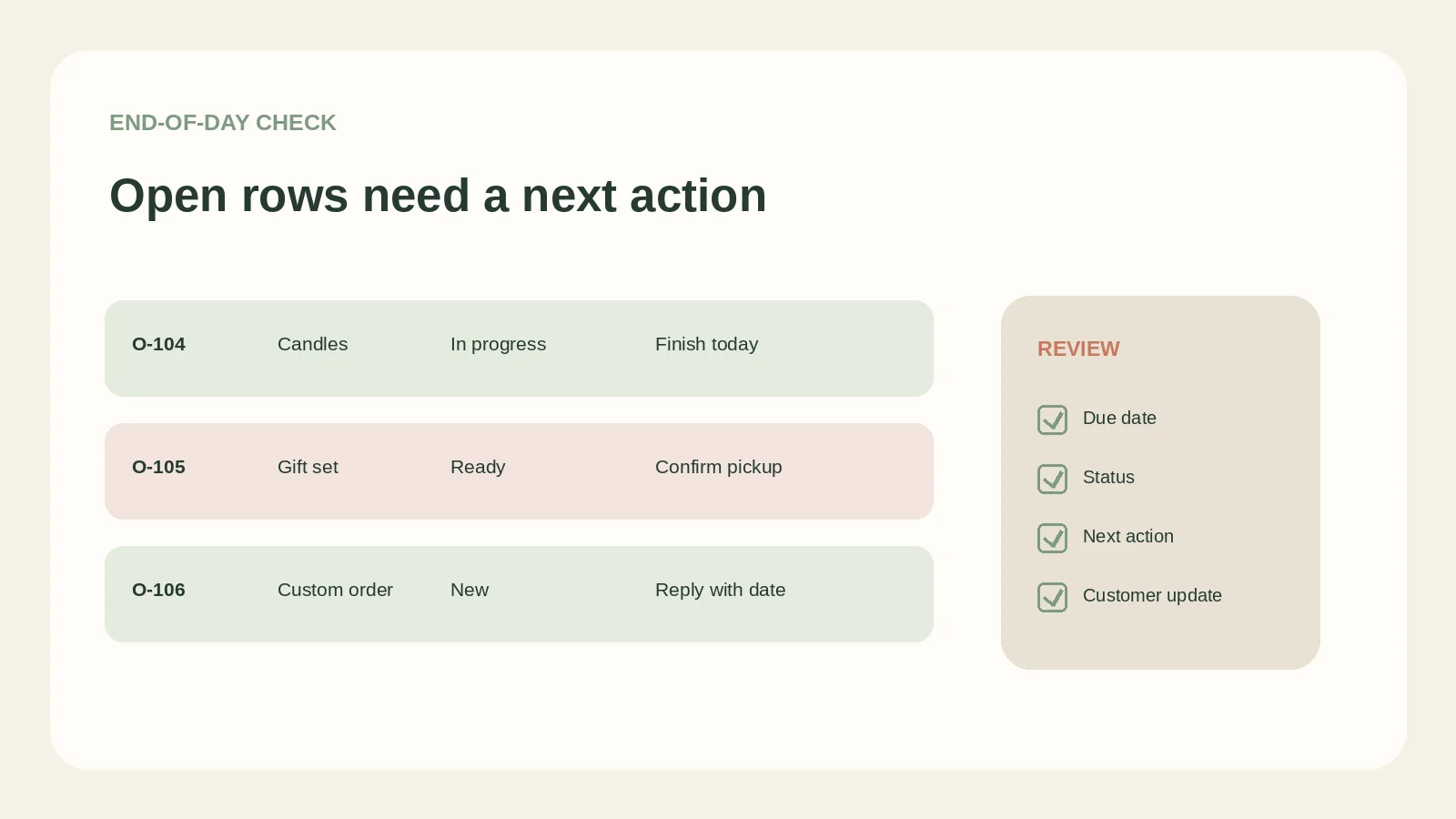
Use a consistent update routine: record an order when you accept it, change its status when the work changes, and review open rows before you finish for the day.
Here is a fictional example. Maya accepts an order for two blue candles on Tuesday, due Friday. She gives it ID O-104, records the customer’s preferred contact method, and sets the status to New. On Wednesday, she starts making the candles and changes it to In progress. When both candles pass her own quality check, she moves it to Ready. After she hands the parcel to the carrier, she enters Shipped and adds the tracking reference from the carrier receipt.
The names and dates are fictional. Watch the handoff: change a status after the action happens, then record what comes next. If the carrier has not scanned a parcel yet, keep the order’s fulfillment status separate from the tracking update. USPS says “Shipping Label Created, USPS Awaiting Item” means a label exists but the parcel has not yet been given to USPS. If you already handed it over, note the handoff and check the tracking record later. Do not move the order back to Ready just because the first scan is missing. USPS explains common tracking statuses.
At the end of the day, filter for orders that are not complete. For each row, ask:
- Is the due date still realistic?
- Is the status supported by something you did or confirmed?
- Is there a next action, and when will you do it?
- Does a customer need an update?
A short review is useful because a blank next-action cell is easy to miss in a long list. The Small Business Bundle pricing calculator can help with a separate task: checking the price behind a product before you accept more orders at that price.
What Should You Do When an Order Changes?
Keep the original request traceable, record the change, and confirm any new promise with the customer before you edit the due date or item details.
A customer may change a color, quantity, pickup plan, or delivery address. Add a brief note with the date and the agreed change. If the new request affects price or timing, send a clear update and wait for agreement before treating it as final.
For a missed due date, contact the customer with the current status and a realistic next date. Do not mark an order complete just to clear it from the open list. If an order is canceled, use a canceled status and keep the record according to your own recordkeeping needs. A tracker helps you organize tasks, but it does not replace your sales platform, payment records, or customer messages.
If you sell through a platform, compare your tracker with that platform before making a change that affects shipping or payment. Shopify, for example, distinguishes an order's payment state from fulfillment status. Use the system that holds the source of truth for each detail.
When Is a Spreadsheet Enough, and When Do You Need an App?
A spreadsheet can suit a small operation when you can update rows by hand and one person can see the current status. An order-management app may be a better fit when orders need to sync from several sales channels, trigger automatic messages, create shipping labels, or support a team with different permissions.
| A spreadsheet may fit when… | Look at an app when… |
|---|---|
| You have a manageable number of active orders | Orders arrive across channels and need to sync |
| One person owns updates | Several people need assigned tasks or permissions |
| You can check payment in its source system | You need payment and fulfillment automation |
| Your process changes rarely | You need automatic shipping labels or customer alerts |
Do not pick a tool based on a status list alone. First write down where orders arrive, who updates them, and which action gets missed most. Then check whether a spreadsheet can handle that workflow without extra copying.
Our small business spreadsheet guide covers linked sheets for customer, invoice, and pricing work.
Why Trust This Article
We checked spreadsheet dropdown guidance against Google Docs Editors Help, fulfillment terms against Shopify’s help center, and shipping scans against USPS on October 29, 2026. The order example is fictional and shows a suggested workflow, not a customer result. A spreadsheet does not send payments or shipping updates. Read the editorial policy for our source standards and the about page for the team behind this site.
How Small Business Bundle Handles This
Small Business Bundle includes an Order & Customer Tracker spreadsheet among four spreadsheets and 25+ tabs. The tracker has nine tabs. It is designed for order and customer records, while the rest of the bundle covers bookkeeping, bills, and pricing. The bundle is available for Excel and Google Sheets, according to the product contents.
If you want a ready-made file for this paperwork, see Small Business Bundle. It is a spreadsheet bundle, not an order-management platform or payment processor. Keep payment confirmation and shipping status in the service that handles each one, then update your own records.
Suggested next step: add the fields you need to one test order. If you cannot tell what to do next by looking at its row, simplify the status names or add a next-action field.
Frequently asked questions
What should an order tracker spreadsheet include?
Start with an order ID, date, customer, item, quantity, due date, status, payment note, and next action. Keep only fields you will update or use to make a decision.
What order statuses should I use?
Use a short sequence that matches your work, such as New, In progress, Ready, Shipped, and Complete. Add a separate payment field if payment can happen before or after shipping.
How do I track orders from Instagram or Etsy in one sheet?
Record each accepted order in the same tracker, then write the source in a channel column if it helps you follow up. Check the original message or platform before changing a delivery or payment detail.
Should payment status be part of the order status?
Usually, keep them separate. An order can be in progress and unpaid, or shipped and paid. Separate fields make those combinations easier to see.
How often should I update an order tracker?
Update it when an order changes and do a short review at the end of each workday. If you receive many orders, check the sheet before promising a due date.
Can I use an order tracker spreadsheet on my phone?
Yes, a spreadsheet app can open a sheet on a phone. Keep the row short and test the fields you need on your device before relying on it during a busy day.
